
Getting Set Up
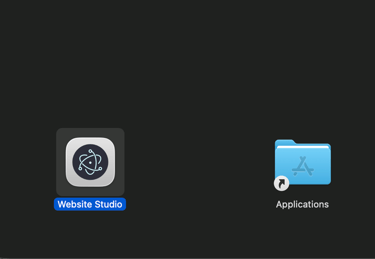
- Use the link provided by your Opendate rep to download the app. Once downloaded, drag the Website Studio icon into your Applications folder.
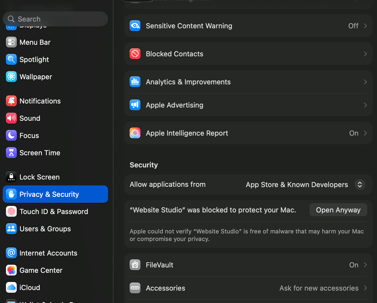
- Open the app. If you receive a message that says something like "Website Studio can't be opened" don't worry! Just head to System Settings -> Privacy & Security and scroll down to the Security section. You'll see the app listed with the option "Open Anyway". Click that button.
- You may see one more message that says something like "Website Studio wants to use your confidential information stored in website studio safe storage". Enter your Mac admin password and select "Always Allow" - this will keep the message from appearing every time you open the app going forward.
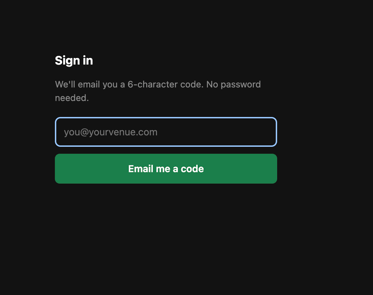
- Your email address has been given access. Enter it on the sign in screen, and a verification code will be emailed to you.
- Once signed in, request changes to your site in the chat at the bottom left. You can attach images using the camera icon. After the bot has made the edits, you can either accept or reject them. Finally, don't forget to publish! The button will appear above the chat after changes have been accepted. You will see the changes reflected on the live site within 1-2 minutes.
*If you see a prompt to install developer tools from Git, you can ignore. Just click Cancel*