1. Request your SSH key from Opendate
Reach out to your Opendate client rep and ask for your SSH public key for the Toast integration. They'll send you a block of text ending in = — you'll need this in the next step.
2. Contact Toast Support and request SFTP access
Reach out to your Toast account manager or open a ticket at Toast Central → Support. Use this message, filling in your key:
"Please enable third-party data exports and SSH key access on my account, and add the following public key for our partner Opendate: [paste your SSH key here]"
Toast will enable the feature and load the key. If you prefer to add the key yourself instead, see Step 3.
3. Add our SSH key in Toast Web (if not done by Toast)
If Toast didn't add the key on your behalf, add it yourself in Reports → Settings → SSH Keys → Add new key. Paste in the key we sent you and click Add key. Full instructions here.
4. Enable all columns in Data Exports
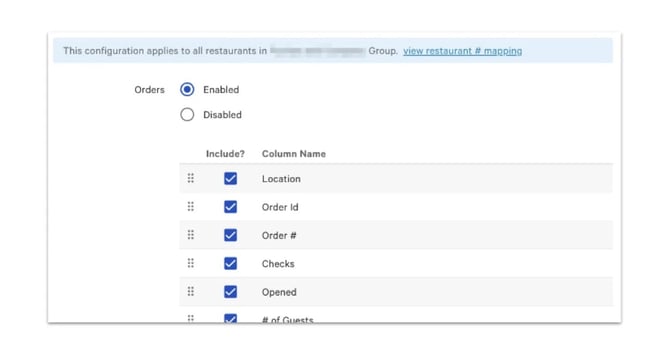
In Toast Web, go to Reports → Settings → Data Exports and make sure all columns are enabled.
5. Collect your connection details
-
Host (Server URL) In Toast Web, go to Reports → Settings → SSH Keys.
-
SFTP Username Your username is listed next to your Server URL.
-
Restaurant GUID In Toast Web, go to Reports → Settings → Data Exports and click the link in the banner at the top. This downloads a mapping file with the GUID for each of your locations.
Multiple locations? Send us the GUID for each location you want to connect.
6. Send your details to Opendate
Reply to your Opendate client rep with the Host, Username, and Restaurant GUID. We'll finish the setup and confirm when it's live.
5. Data from Toast in Opendate Events
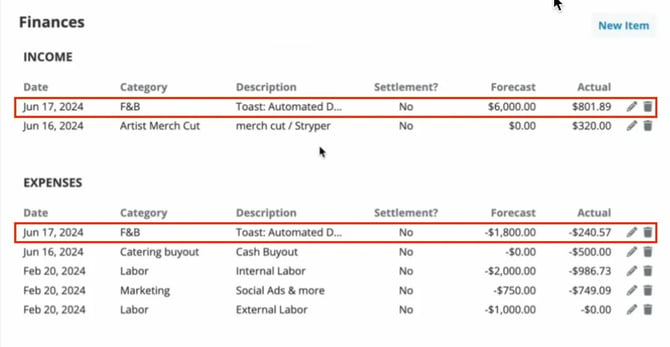
When data starts flowing in you will see it appear in the Finance section after the event, as well as in your reports. You will notice another line in expenses representing the cost of goods sold, we will automatically set this as 30% unless further notified.